
The Appointment Question lets customers pick a service, choose a date, and book a time. You set the services, how long each one takes, and when you are available.
Add the question
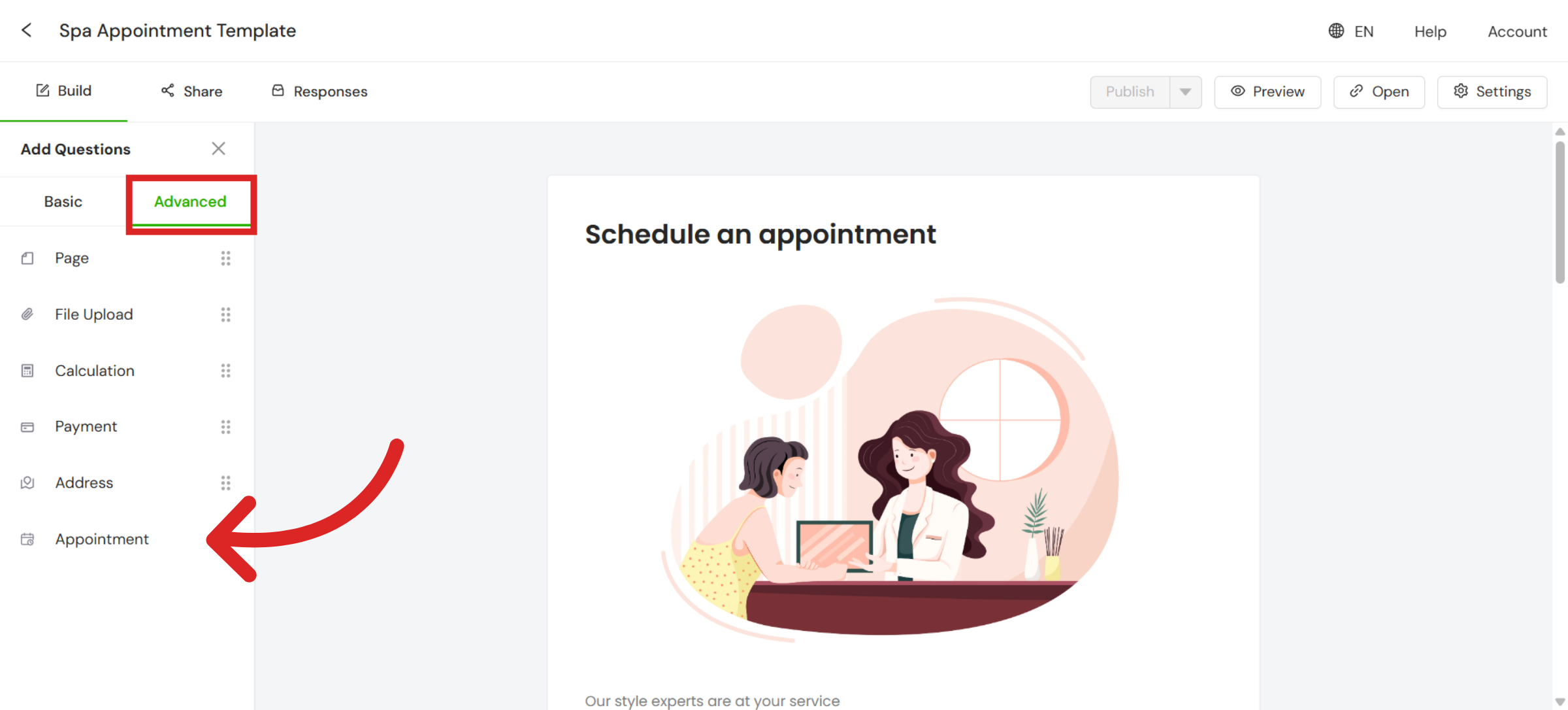
Open your form builder and select Advanced. Click Appointment to add the question type to your form.
Customize your question
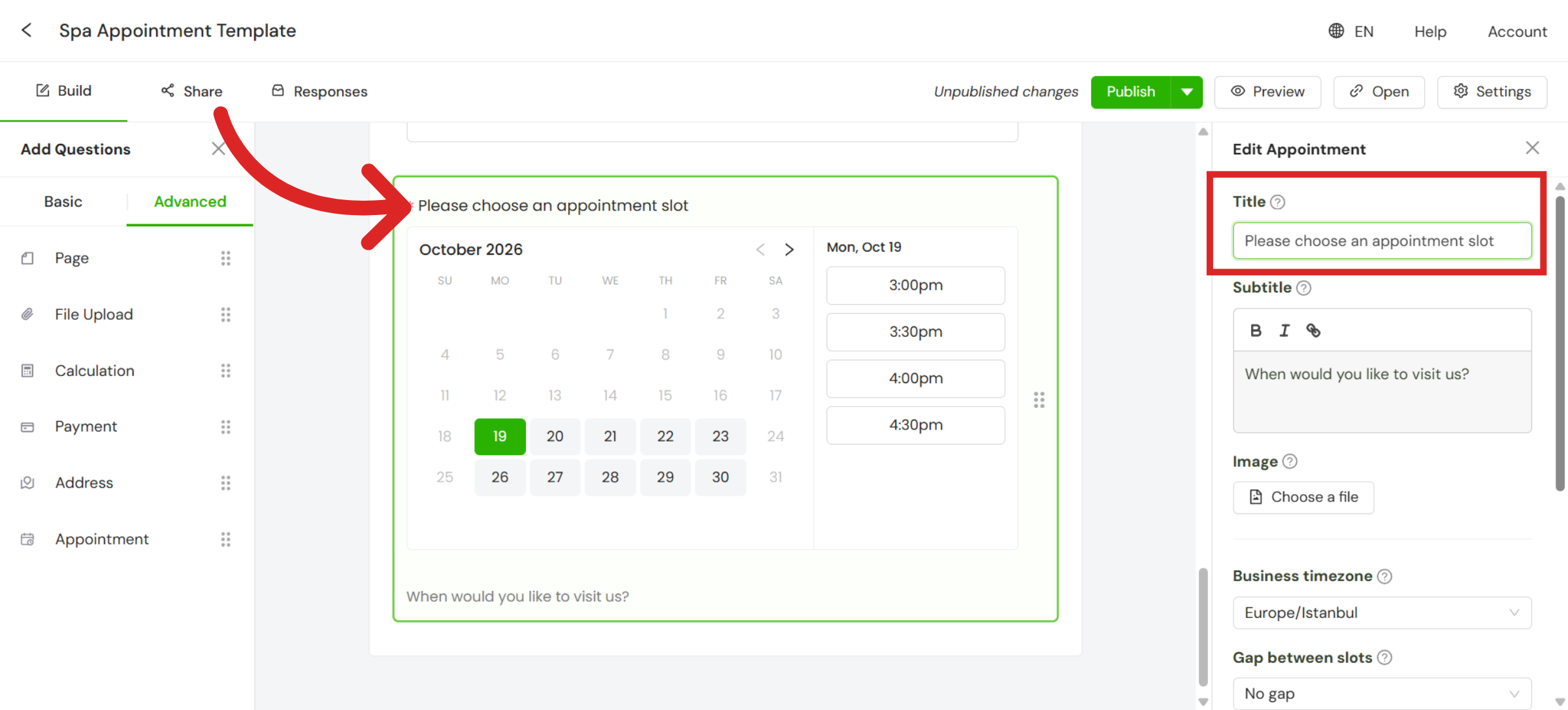
Add a title for your question. This appears at the top.
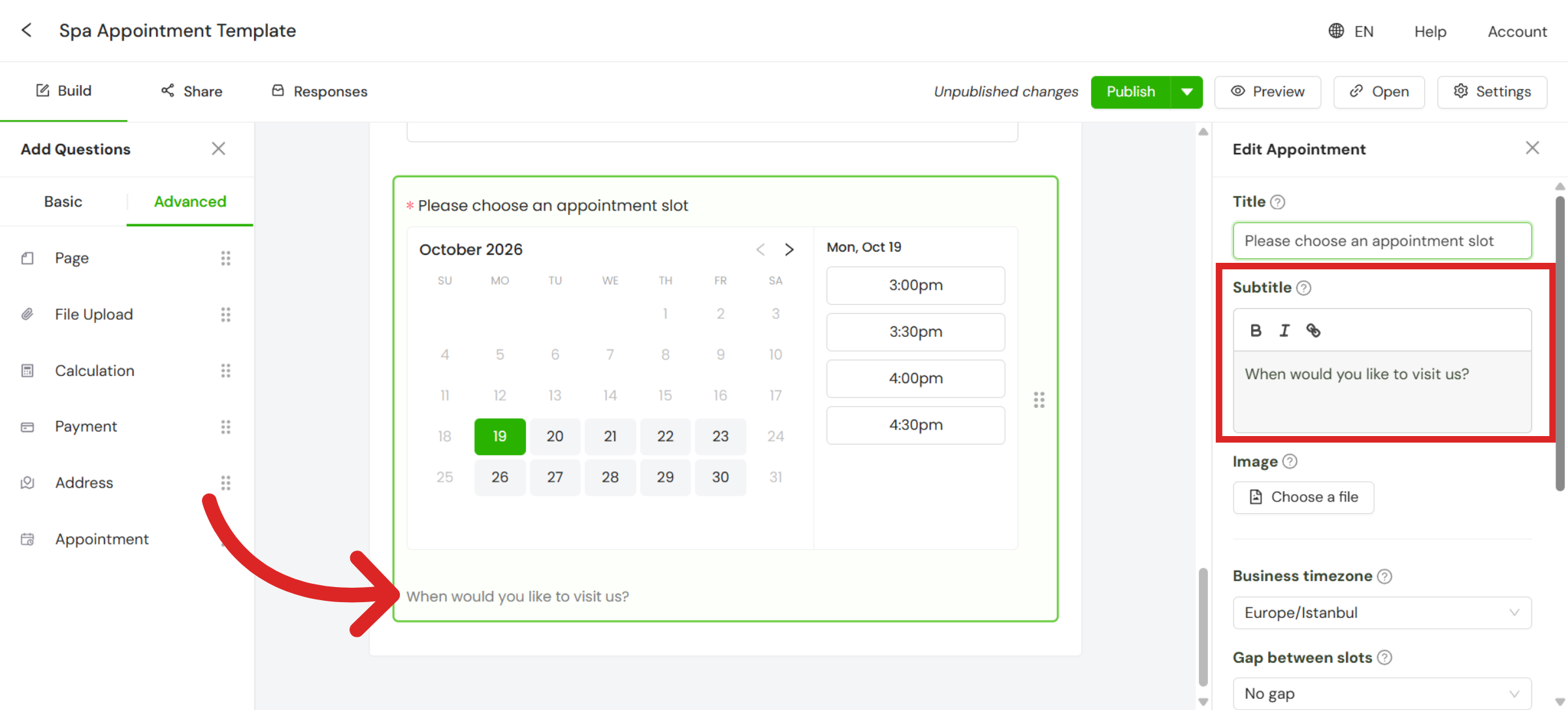
Add a subtitle to explain what customers are booking. This appears at the bottom.
You can also upload an image for the question.
Adjust booking settings
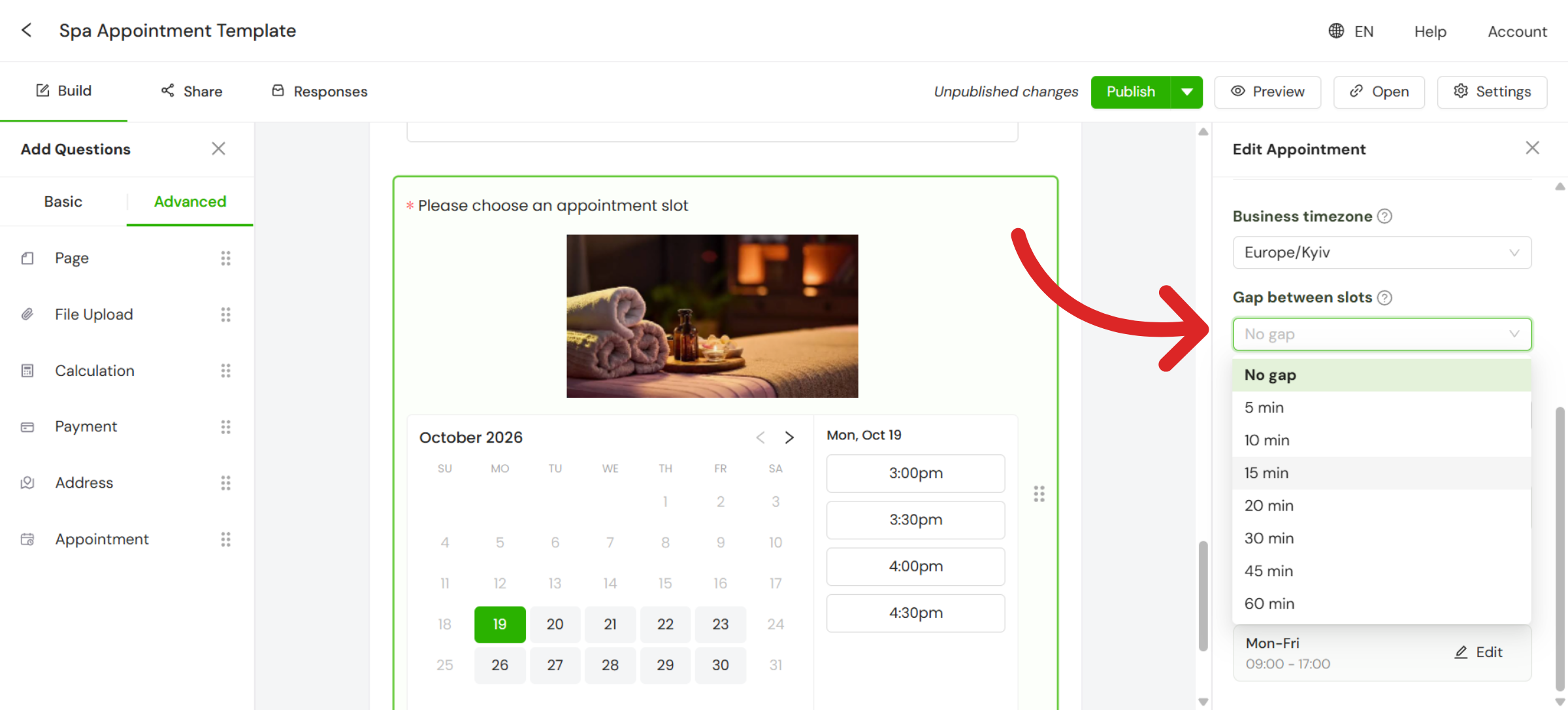
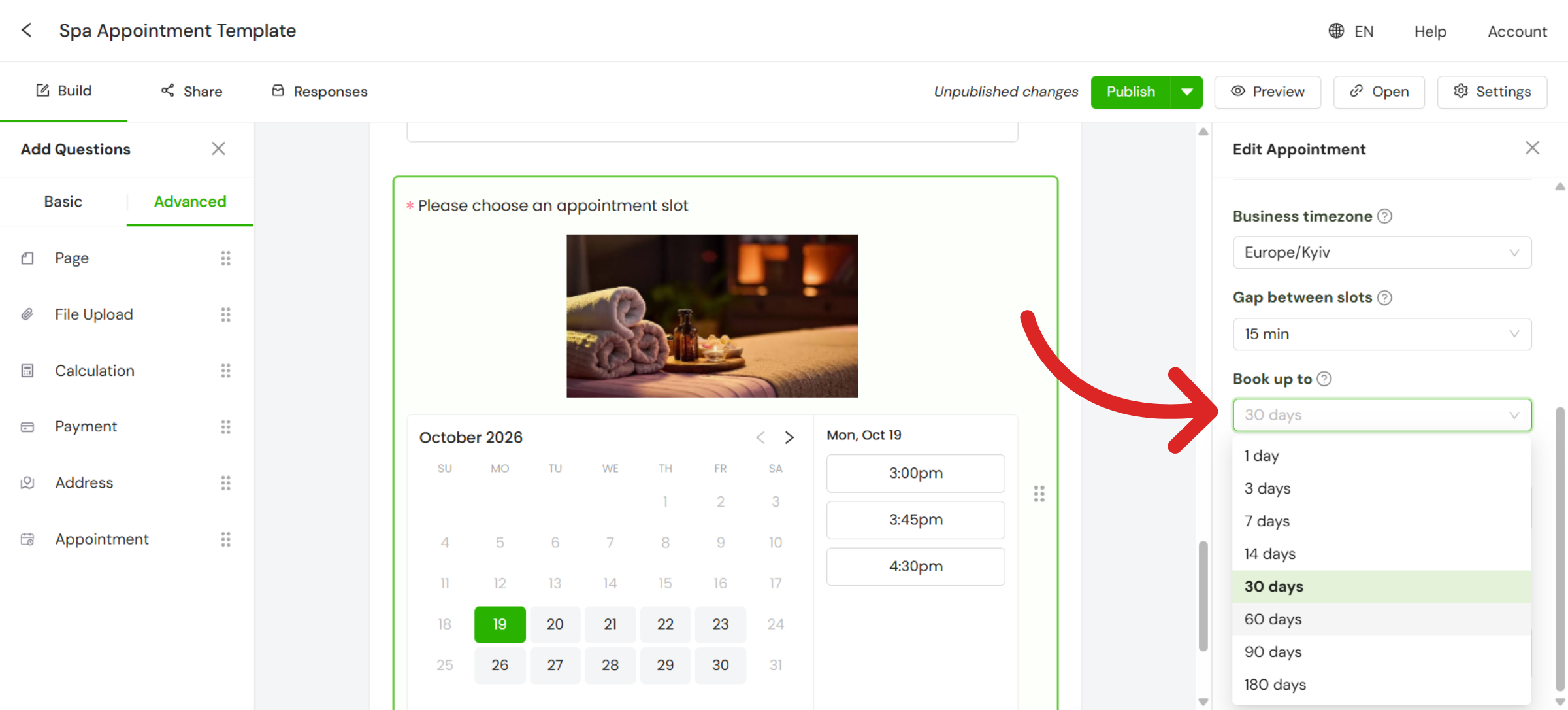
Three settings control how bookings work.
| Setting | What it does |
|---|---|
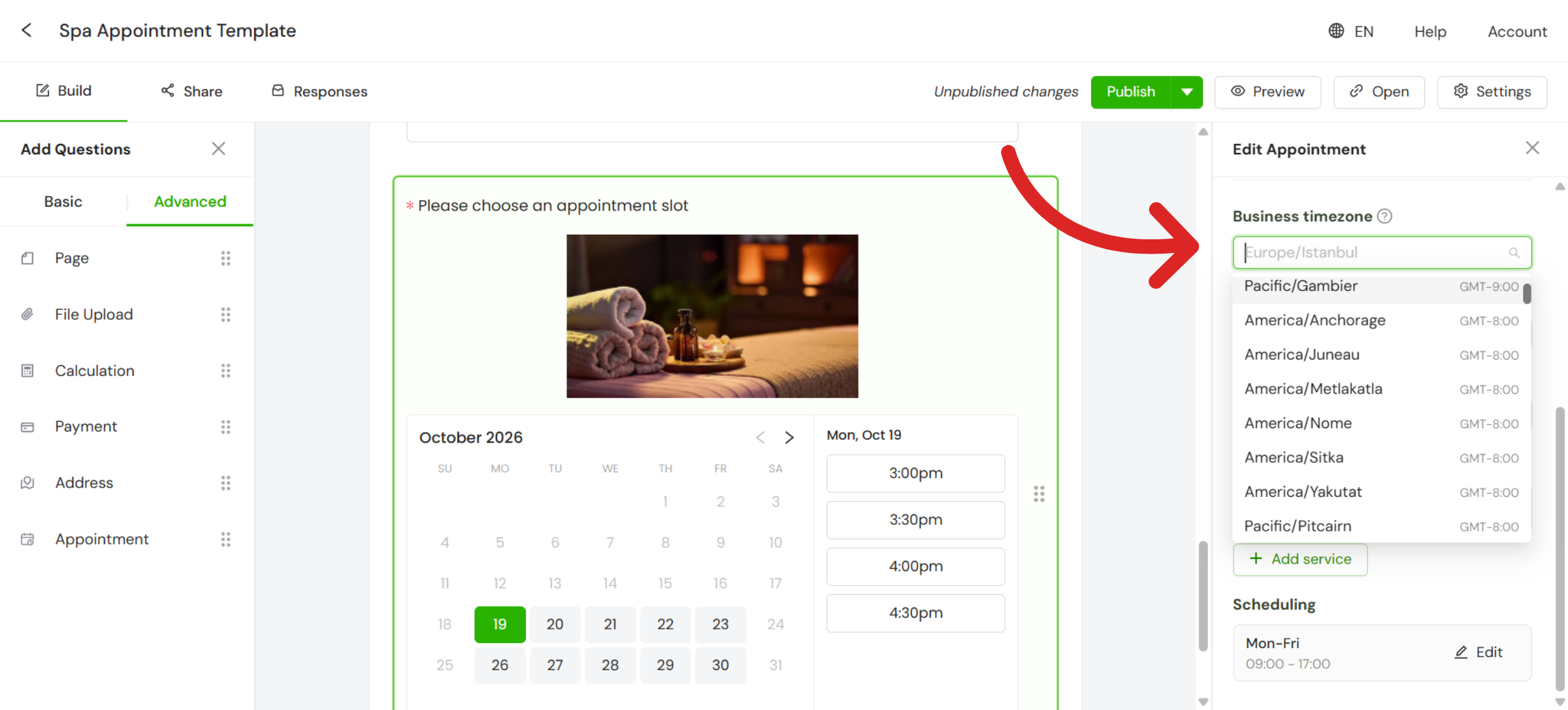
| Business timezone | Makes sure appointments are scheduled in the correct timezone |
| Gap between slots | Sets the interval between available booking times |
| Book up to | Sets how far in advance customers can book |
Add your services
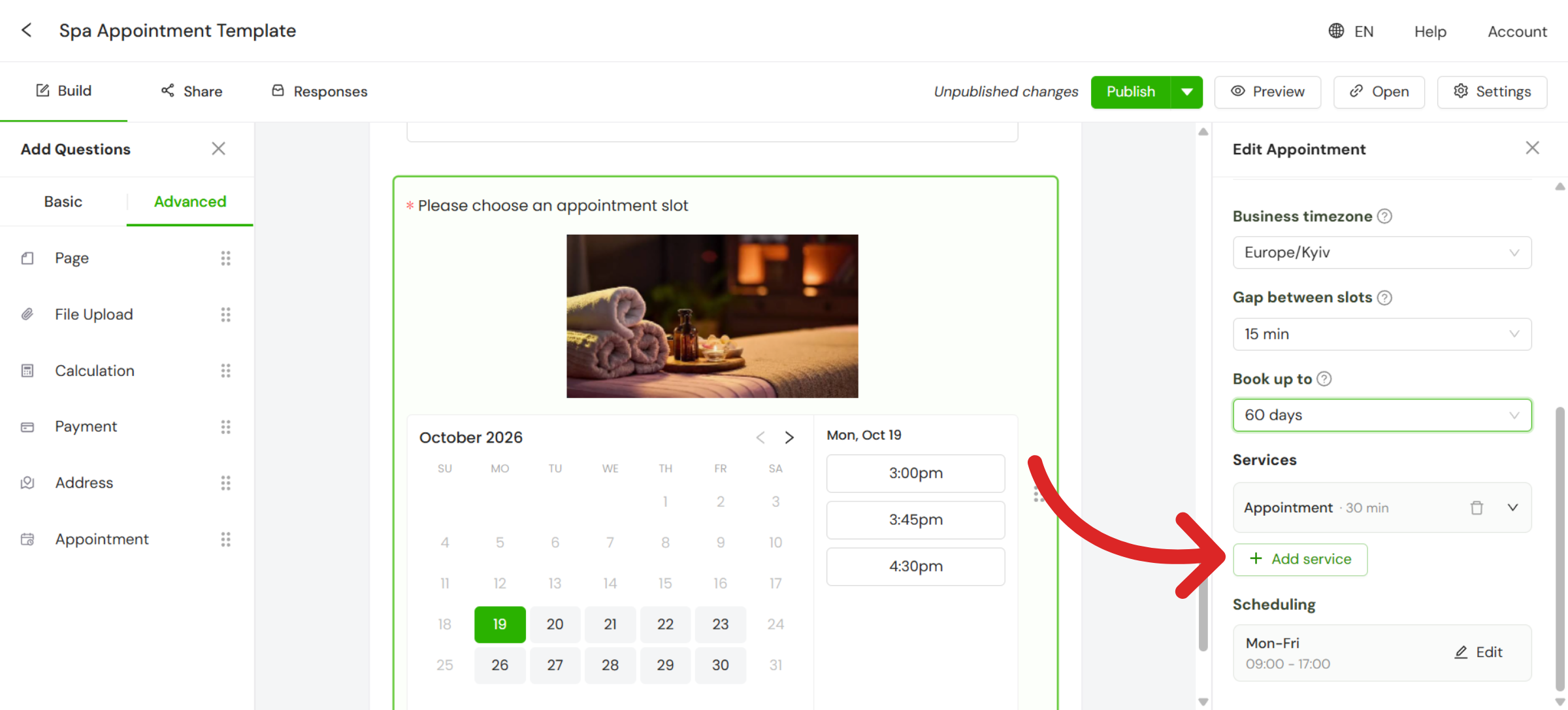
Under Services, click + Add service to create a new service.
Enter a Service name and select how long the appointment should last. You can add a description too.
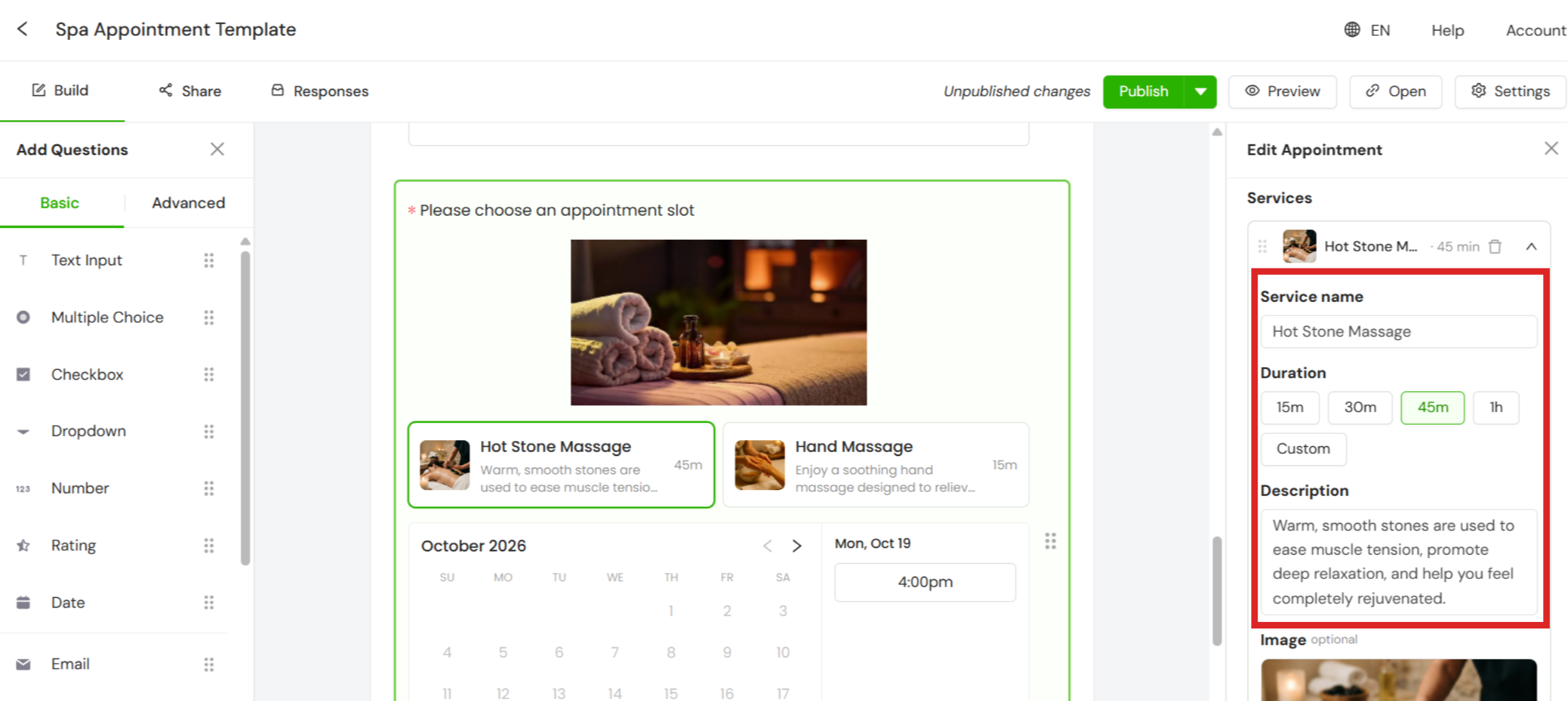
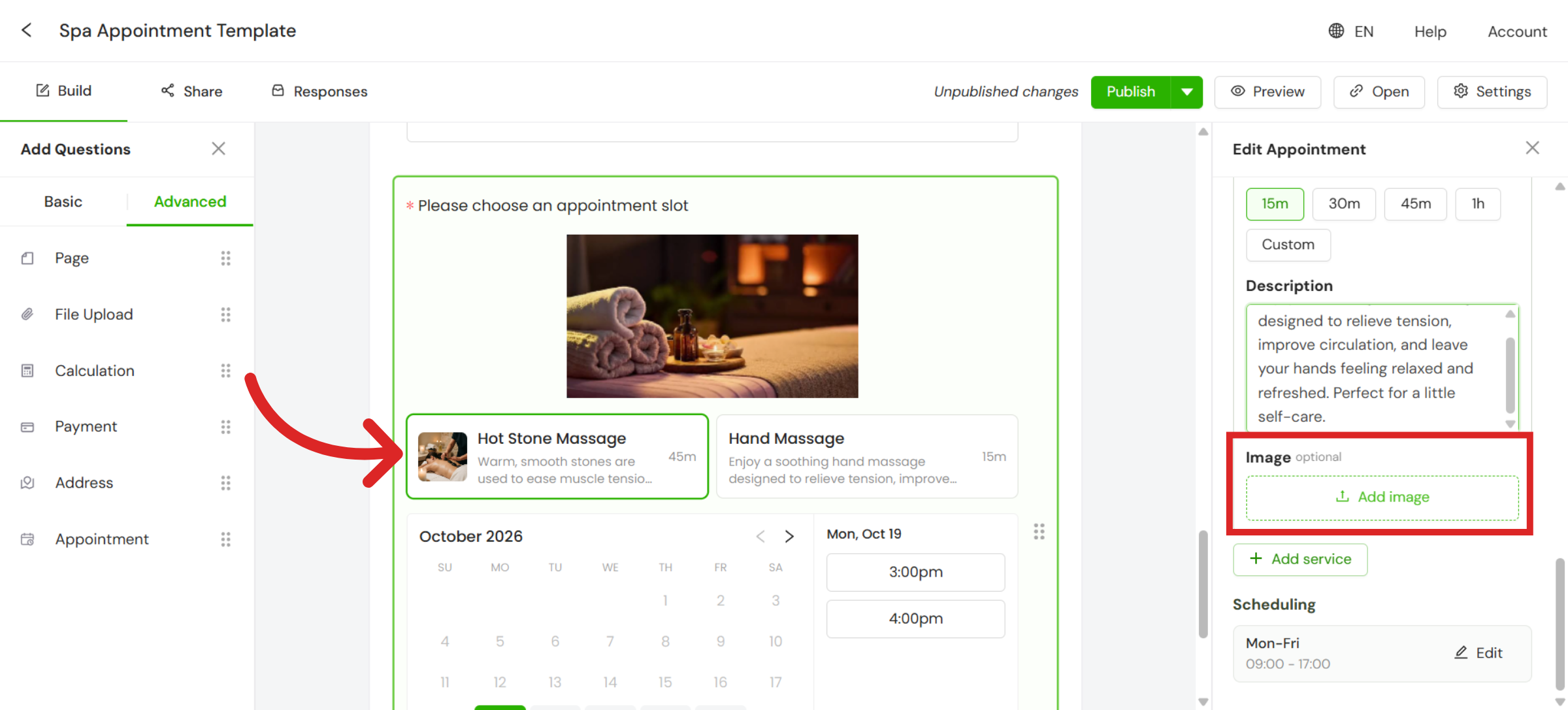
Add an image to help customers understand the service.
Set your availability
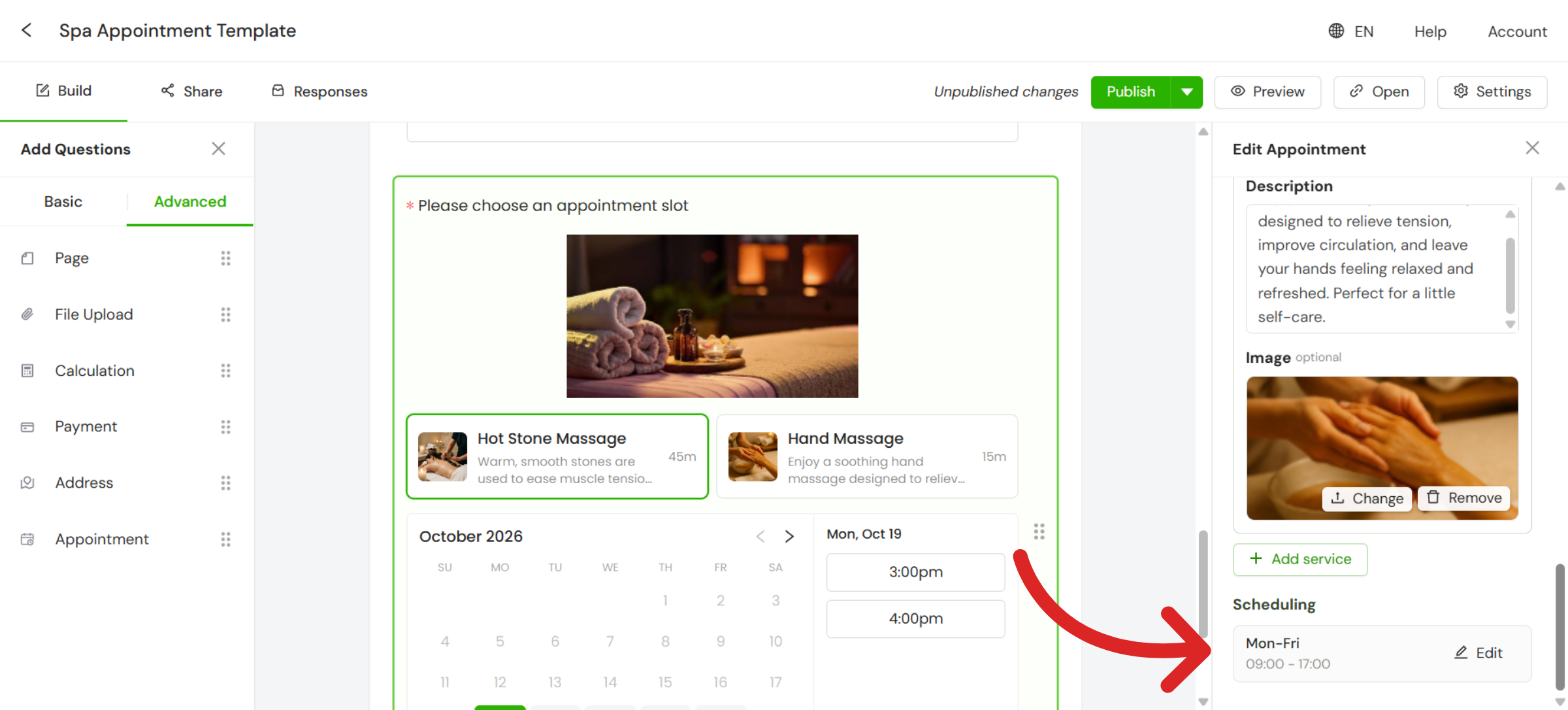
Under Scheduling, click Edit to manage your appointment availability.
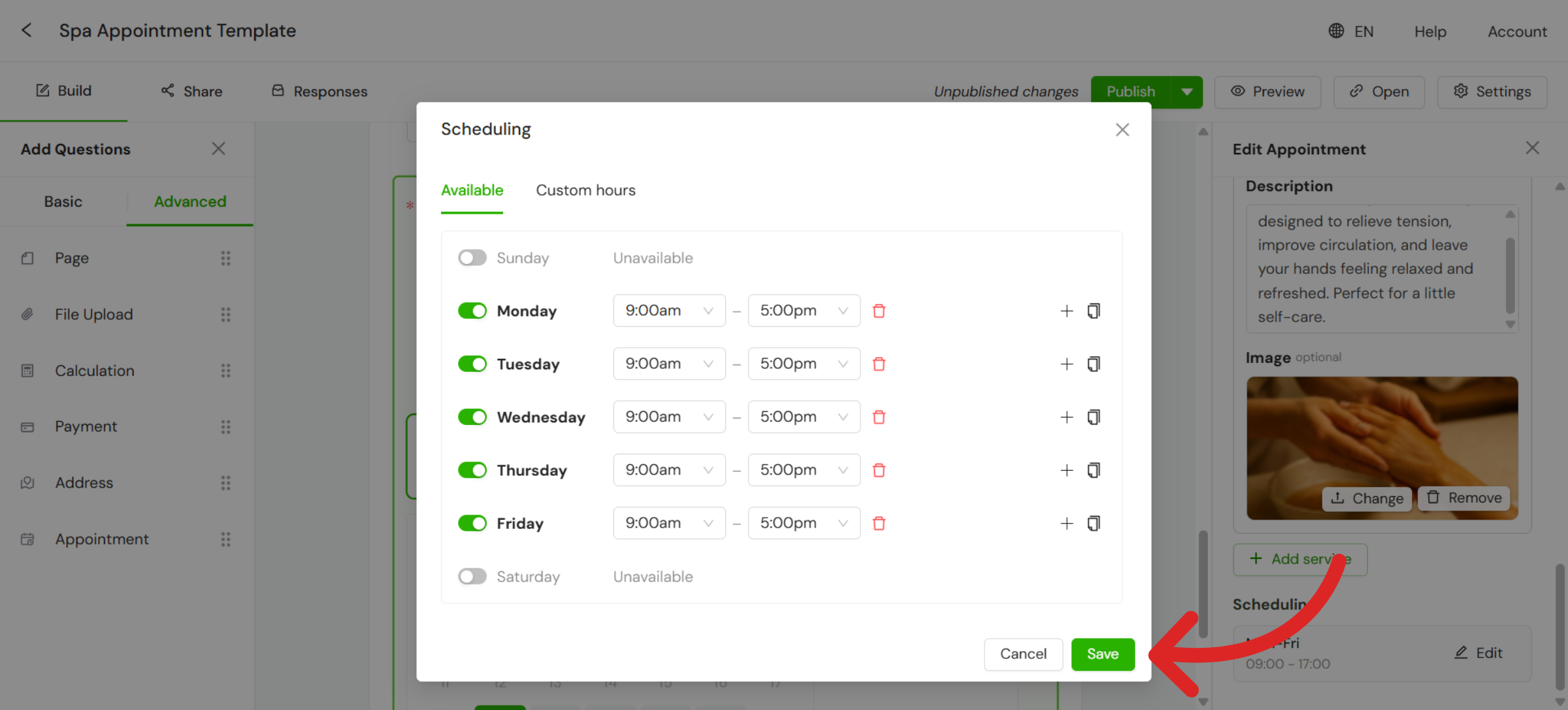
In the Available tab, choose the days and hours when customers can book. Click Save when you're done.
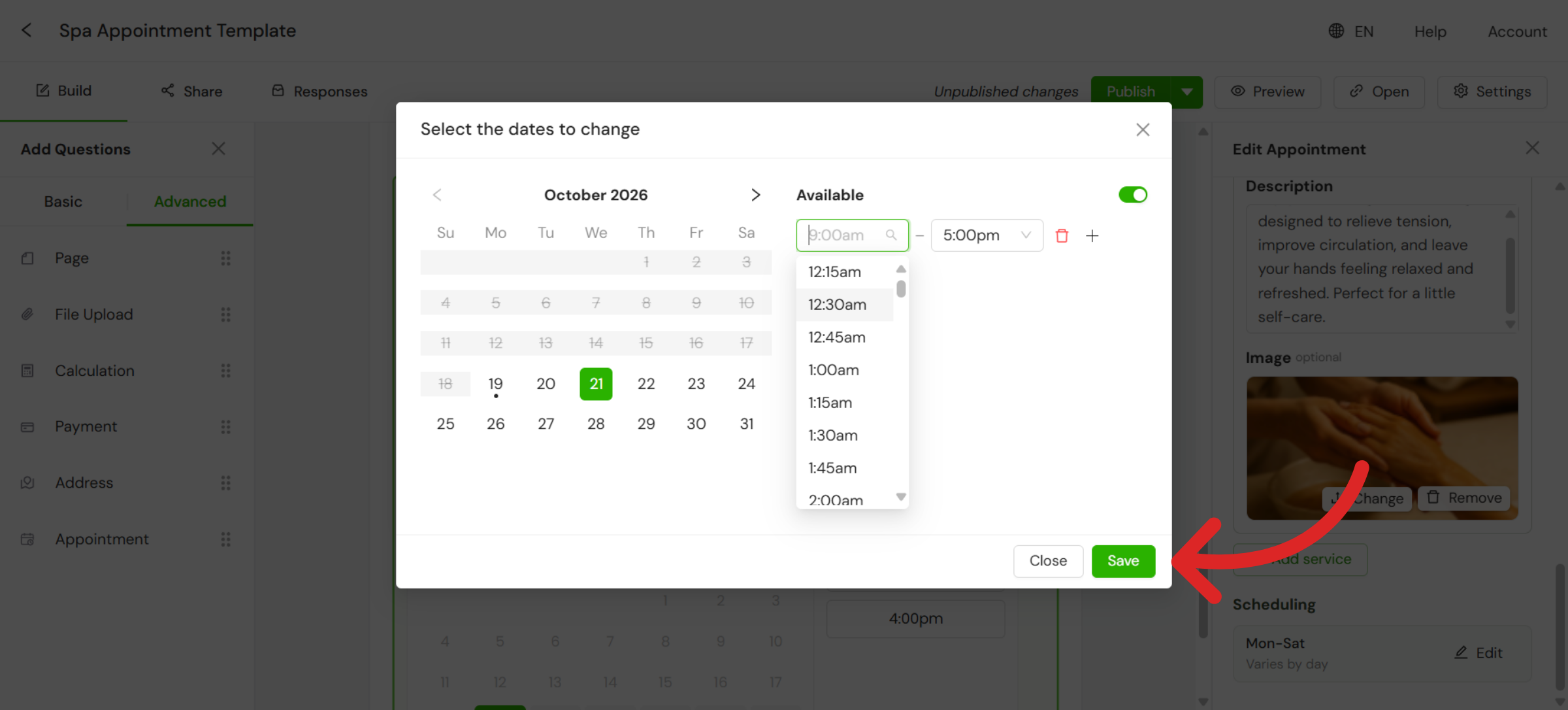
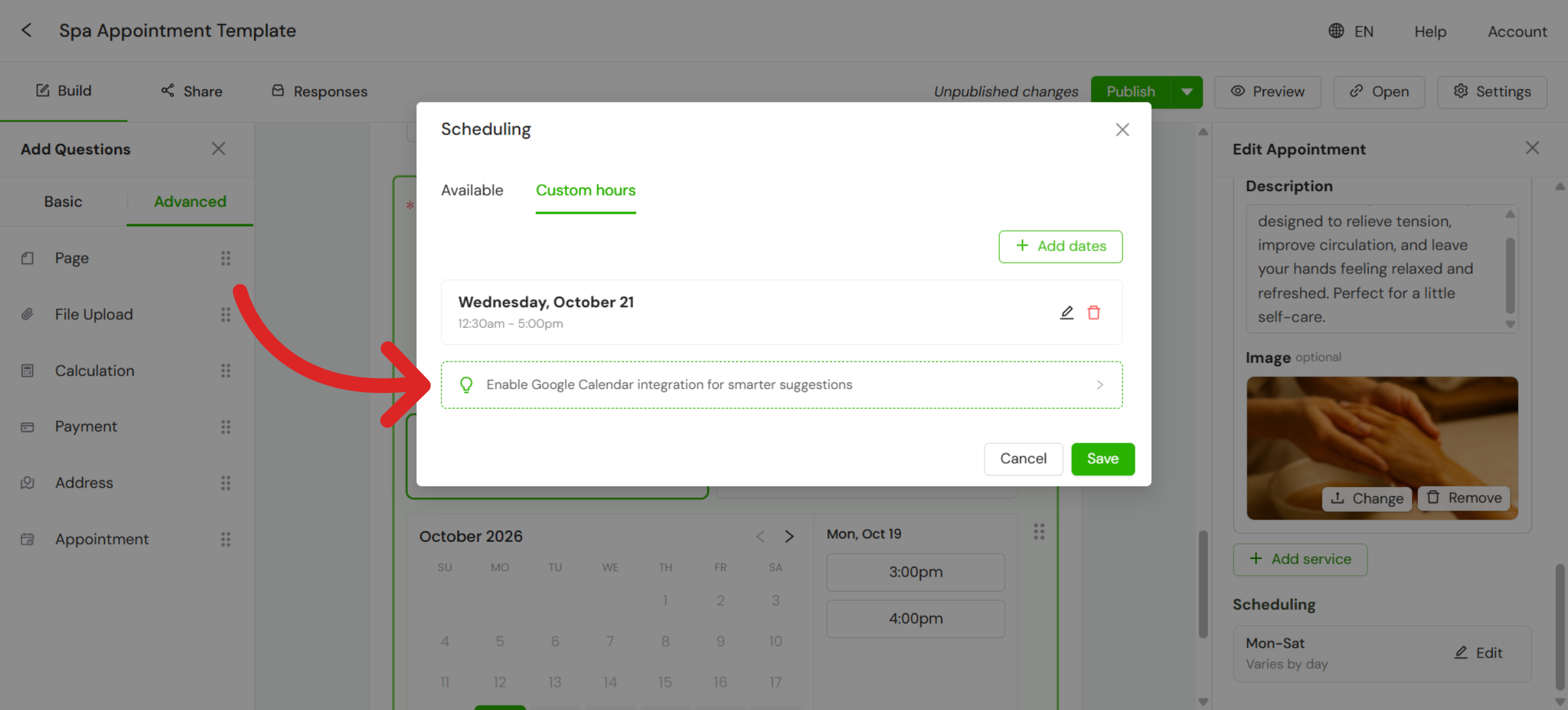
Open the Custom hours tab to change your availability for specific dates.
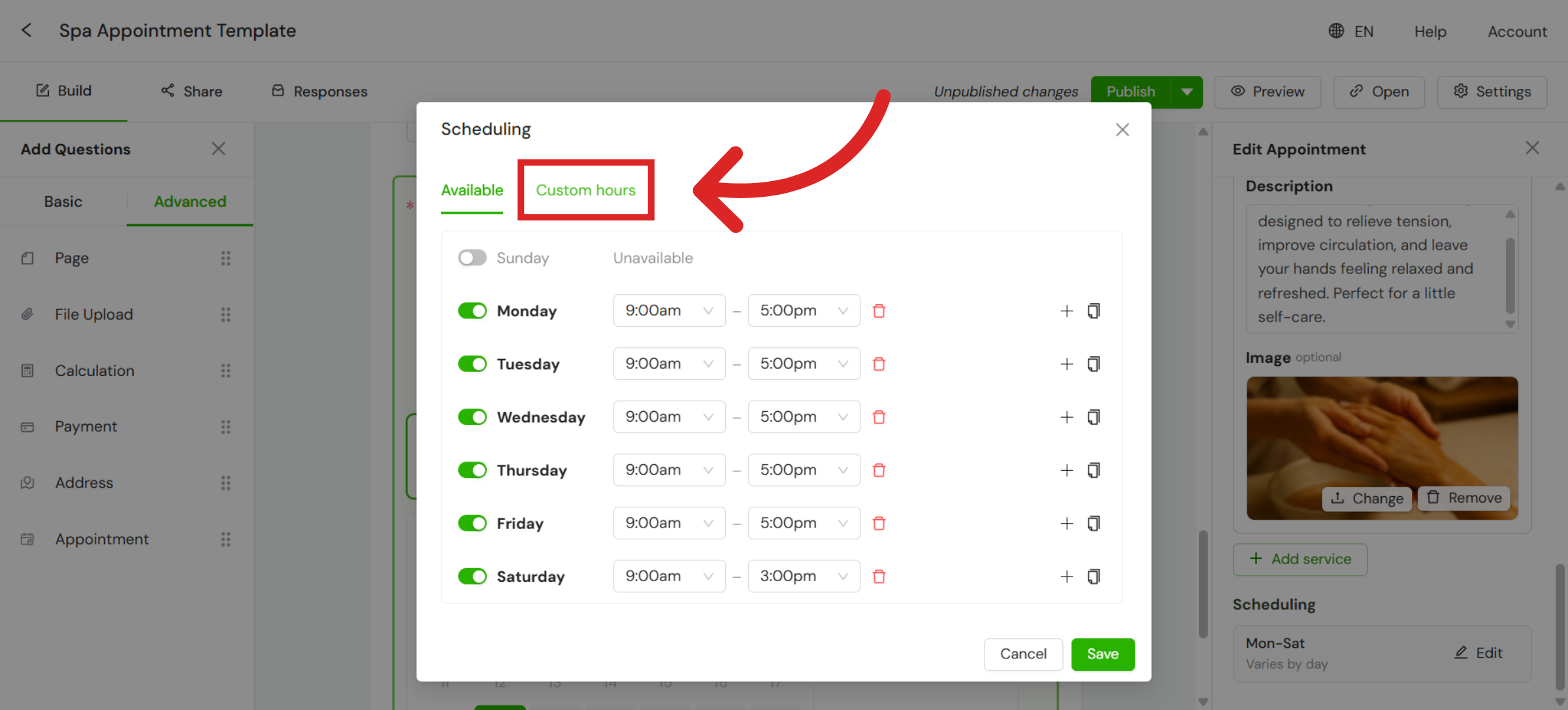
Select a date, update your available hours, and click Save.
Connect Google Calendar
Enable the Google Calendar integration so bookings appear in your calendar. Click Enable and follow the instructions.
View your question
This is how your Appointment question looks to customers.
Tip
If you only need a date or time and no services, use the Date Question instead.
Still need help?
Contact us